Connectivity Guide
⚠️ Important Notes
Section titled “⚠️ Important Notes”- Make sure you have an Emby user account (ask your admin if unsure).
- If you get connection errors, double-check your domain and port.
- Keep your apps updated for best results.
🏠 Connection Settings
Section titled “🏠 Connection Settings”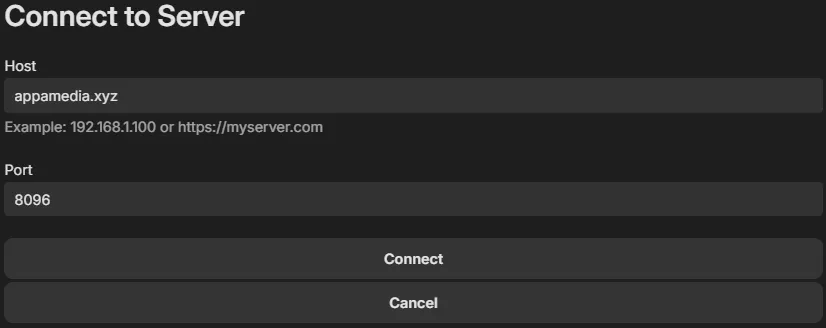
Supported Platforms
Section titled “Supported Platforms”1️⃣ Smart TVs
Section titled “1️⃣ Smart TVs”Emby has dedicated apps for several major smart TV brands, including Samsung, LG, and Android TVs.
- Download the Emby app from the TV’s app store.
- Log in to your Emby server, and you’ll have full access to your media library on the big screen!
2️⃣ Streaming Devices (Roku, Apple TV, Fire TV, Chromecast)
Section titled “2️⃣ Streaming Devices (Roku, Apple TV, Fire TV, Chromecast)”If you don’t have a smart TV, streaming devices are a great option:
- Roku: Available as a free app in the Roku Channel Store.
- Apple TV: Download Emby from the App Store.
- Amazon Fire TV: Available in the Amazon Appstore.
- Android TV: Use either the Android TV or regular Android apps.
- Chromecast: Cast content directly from the Emby mobile app.
3️⃣ Mobile Devices (iOS and Android)
Section titled “3️⃣ Mobile Devices (iOS and Android)”Stay connected on the go:
- Download the Emby app from the App Store (iOS) or Google Play Store (Android).
- Stream media, manage your library, and even download files for offline viewing.
4️⃣ Computers (Windows, macOS, Linux)
Section titled “4️⃣ Computers (Windows, macOS, Linux)”Access Emby on desktops/laptops:
- Open your preferred web browser and log in at
https://appamedia.xyz. - Alternatively, use the desktop apps for Windows or macOS.
5️⃣ Gaming Consoles (Xbox and PlayStation)
Section titled “5️⃣ Gaming Consoles (Xbox and PlayStation)”Gaming consoles like Xbox One, Xbox Series X/S, and PlayStation 4 can access Emby:
- PlayStation: Use the console’s browser, enter the server address, and log in.
- Xbox: Download the Emby Theater app from the Xbox Store.
📱 Platform Instructions
Section titled “📱 Platform Instructions”🔹 Web Browser
Section titled “🔹 Web Browser”✅ Go to: https://appamedia.xyz
✅ Login with your provided Emby account.
✅ Bookmark the site for quick access.
🔹 Android / iOS App
Section titled “🔹 Android / iOS App”✅ Install the Emby app from Google Play or App Store.
✅ Open the app.
✅ When prompted, enter: appamedia.xyz on port 443.
✅ Enter your Emby username + password.
🔹 Smart TV (LG, Samsung, etc.)
Section titled “🔹 Smart TV (LG, Samsung, etc.)”✅ Install the Emby app from your TV’s app store.
✅ Launch the app.
✅ On the “Connect to Server” screen, enter: appamedia.xyz on port 443.
✅ Log in with your user account.
🔹 Apple TV / Fire TV / Roku
Section titled “🔹 Apple TV / Fire TV / Roku”✅ Download Emby or Emby Theater from the respective app store.
✅ Open the app.
✅ On setup, enter: appamedia.xyz on port 443.
✅ Login as usual.
🔹 Emby Theater (Desktop App)
Section titled “🔹 Emby Theater (Desktop App)”✅ Download from emby.media.
✅ Install and launch the app.
✅ Connect to: appamedia.xyz on port 443.
✅ Login with your account.